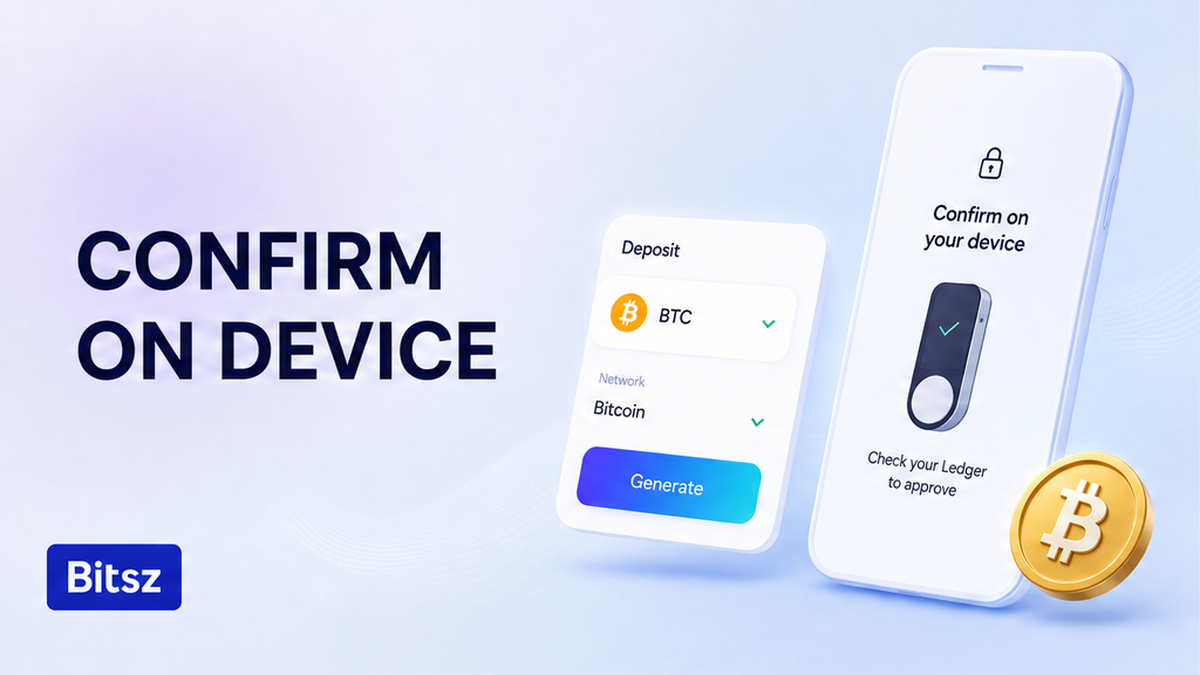

Your coins sit on a Ledger or Trezor, and a look-alike swap page will still ask you to Connect Wallet. That is not how Bitsz is paid. First create a live order on bitsz.io, copy the one-time deposit from that order screen, then send from Ledger Wallet or Trezor Suite on the same network as the chip. You will read the full address, amount, and fee on the device, reject a mismatch or a blind-sign, and broadcast once.
Quick answer: Open a live order on bitsz.io, copy the one-time deposit from that order UI, and never Connect Wallet. In Ledger Wallet (formerly Ledger Live) or Trezor Suite, pick the account that matches the Network chip. Paste the address. Add a memo only if this order shows one. Read the full destination, amount, and fee on the hardware screen. Reject any difference or a “Data Present” prompt. Broadcast You send once, keep native gas, and do not save the address.
A hardware wallet is a small signer that keeps keys off the laptop. The companion app builds the send. The device must physically confirm. Bitsz is non-custodial: it does not hold your coins. After Exchange you get a unique deposit. Pay it with a normal Send. Recipient’s address is where Bitsz pays you after the swap. Do not send hardware funds there. Start with a typed bitsz.io tab, not a chat link.
How to open a live bitsz.io order first; copy the deposit, never Connect Wallet
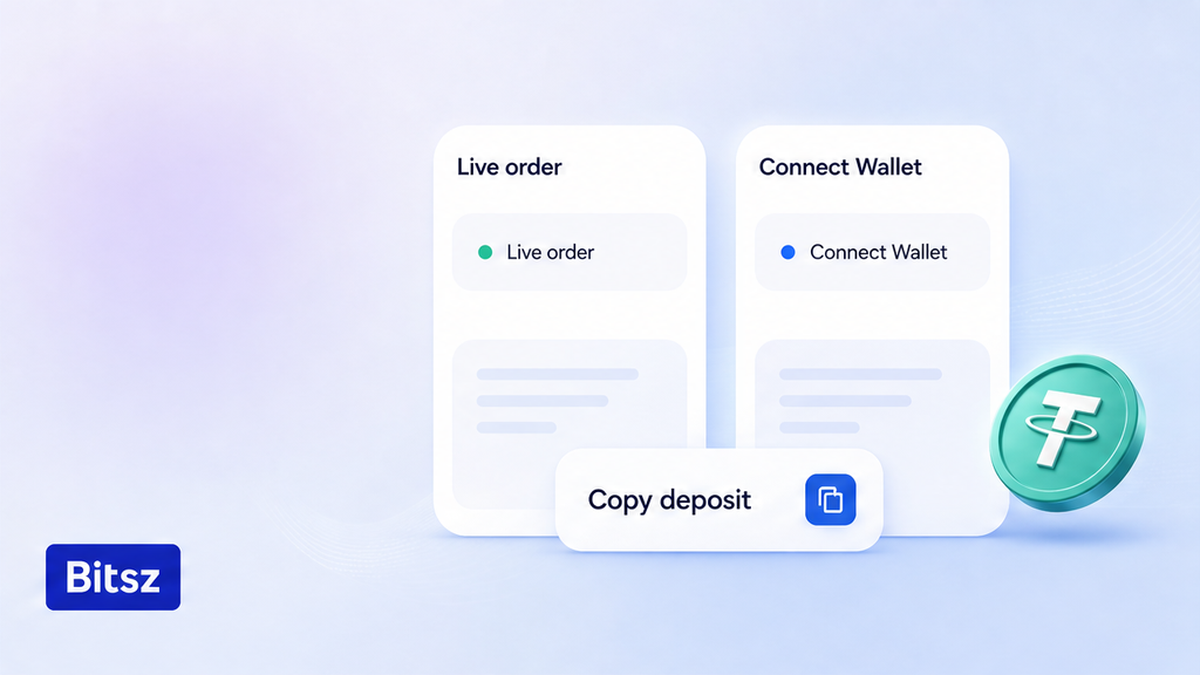
Copy the live deposit. Never Connect.
Do this before you unlock the device. Fill You send and You receive. Pick the Network chip. Choose Floating or Fixed if Fixed is offered. Paste your payout into Recipient’s address, accept the checkbox, then tap Exchange. Copy the one-time deposit from this order UI. The live widget has no Connect Wallet control. If a tab asks Connect, WalletConnect, approve, or Permit “to pay Bitsz”, Reject it. Use the Connect Wallet and token approve checklist instead of this Send flow.
Fixed quotes can be temporarily unavailable. If you do get Fixed, Terms 2.2.1 freeze the rate for 12 minutes. A hardware confirm is slow, so that clock matters. Do not copy a deposit from history or an address book. Terms 2.4 assign a unique address per transaction.
Workflow:
First create the live order and copy the deposit from that screen. Then open the matching account in the companion. Next paste, add a memo only if the order shows one, and read the device. Then broadcast once if the timer is still live.
When to pick the Ledger Wallet or Trezor Suite account that matches the deposit network chip
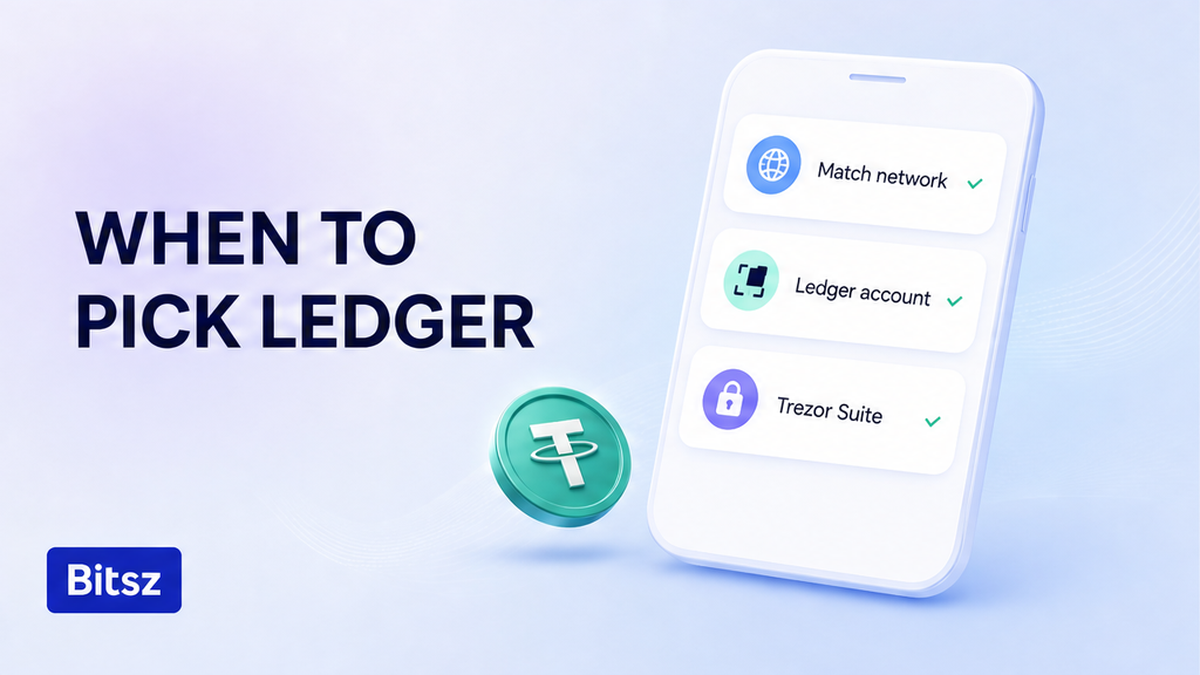
Open the account that matches the chip.
USDT is a ticker, not a network. ERC-20 means the token rides on Ethereum. TRC-20 means it rides on Tron. BEP-20 means it rides on BNB Smart Chain. The Network chip is the rail you must pay. In Ledger Wallet, open Send on the same ticker and chain, with that blockchain app open on the device. In Trezor Suite, each account is one network. Use the account picker. If the network is missing, add it under Settings, then Networks. Do not send USDT on Ethereum to a TRC-20 deposit because “the address pasted”.
A “0x” string can look valid on more than one EVM chain. Check the account name against the chip, not the letters at each end. Wrong network can lose the coins. Match this order’s chip. Do not pick a cheaper rail.
How to paste the order address; add a memo on the device only if this order shows one
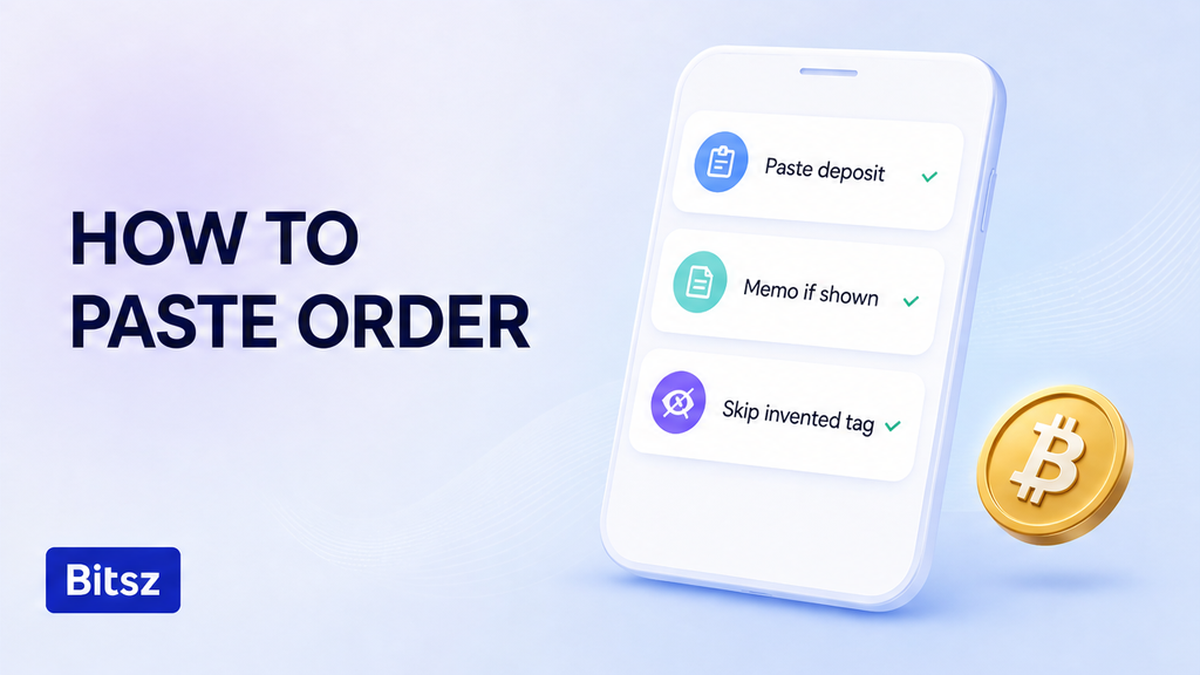
Paste the deposit. Add a memo only if shown.
Paste the deposit from the live order screen, not from transaction history. Trezor warns that history is easy to poison. Do not type an ENS name (a .eth label). Bitsz gives a raw address. If the wallet will not accept a packed X-address or M-address, stop and open a fresh order.
A destination tag, memo, comment, or message is an extra ID some chains (XRP, XLM) use so an exchange can credit the right order. Add that field in Send only when this Bitsz order shows it. If the order has none, do not invent a number. Bitcoin orders do not get a memo. See the memo and destination tag checklist.
Step: read the full destination, amount, and fee on the hardware screen; reject mismatch or blind-sign
Assume the computer is compromised. Ledger’s verify-transaction note (updated 13 May 2026): the laptop address is not the source of truth. Trezor’s Trusted Display shows the address the transaction will actually pay. Malware can swap a paste inside Suite. Match that screen to the Bitsz order. The device cannot tell you whether the payee is the right one.
Read the full destination, including the middle, plus amount and fee. Do not approve from the first and last characters. If Ledger Wallet warns “Mismatch between the copied address and the one in the clipboard”, abort and treat the PC as unsafe. See the clipboard hijack checklist. Here the hardware screen is the signature step. If the device shows only a hash, “Data Present”, approve, WalletConnect, or “verify wallet” typed data, that is not payment of this order. Blind signing means you trust the computer. Do not Approve. Reject and go back to Send.
| Check | Ledger Wallet | Trezor Suite |
|---|---|---|
| After you confirm on the device | Confirm means signed and sent | Sign on the device, then still click Send to broadcast |
| How to abort | Reject on the device cancels | The cross cancels until broadcast |
| Network | Same ticker and chain, blockchain app open | Each account is one network |
Verdict: Use Ledger Wallet or Trezor Suite Send, not Connect. On Trezor, do not tap Send if the Bitsz timer already died. On Ledger, Confirm is already a broadcast, so reject earlier.
Avoid broadcasting if the order expired; do not save this one-time address
If the order timer ran out while the device is still asking, Reject. Do not tap Send. Do not broadcast to the old deposit. Open a fresh bitsz.io order and copy the new address. Fixed lock is 12 minutes (Terms 2.2.1). Do not save a Bitsz deposit in the hardware address book or favorites. The next swap needs a new copy from a new order UI.
Keep native gas on the parent account. ERC-20 fees are paid in ETH, not in the token. BEP-20 fees are paid in BNB. Ledger’s token-fee note (updated 6 October 2026): Review stays grey until the native coin is there. You cannot pay the fee with USDT. Send the printed You send amount in one payment. A Bitsz test is a new order and a new deposit, not a second transfer to this address.
Terms 2.5 and 6.3 put incorrect addresses on you. Bitsz has no Cancel that unsigns a To you already confirmed. Terms 6.5 may return coins to the sender of a valid order. That is not a clawback from a wrong To.
Checklist vs clipper, Connect Wallet, and CEX delay: broadcast once and match the explorer
This hardware wallet send to Bitsz deposit checklist is the companion Send onto this order. It is not Connect Wallet, not a clipper paste check, and not a CEX withdrawal with no TxID. Make sure you still check the explorer after send.
- Type bitsz.io, fill You send, You receive, Network, Recipient’s address, then Exchange.
- Copy the one-time deposit from this order UI only. Do not Connect Wallet.
- Open Ledger Wallet or Trezor Suite on the account whose network matches the chip.
- Paste the deposit. Add a destination tag or memo only if this order shows that field.
- Compare the full destination, amount, and fee on the hardware screen with the order. Reject any difference or a Data Present prompt.
- Keep native coin for gas. Send the exact You send amount once.
- If the order already expired while the device is prompting, Reject. Do not broadcast. Open a fresh order.
- After broadcast, match the explorer To field to the order deposit. Save Order ID and the deposit TxID.
Ledger Confirm is signed and sent. Trezor still needs Send after the device signature. Use that click to avoid paying a dead Fixed quote. Track until Finished. Pack Order ID plus deposit TxID on Bitsz support or Live Chat. Email is support@bitsz.io. Do not paste a seed. Official Telegram is a showcase, not a ticket. If status sticks, send one packet, not a second deposit. When you are ready, start with the live Bitsz widget and run this checklist before Approve.
FAQ
Does Bitsz ever need Ledger Connect Wallet to swap?
No. Pay from Ledger Wallet or Trezor Suite Send. If a tab asks Connect, approve, or Permit, reject it and open the Connect Wallet checklist.
What if the device screen shows a different address than the order?
Do not approve. Reject. Do not broadcast. Recopy the deposit from the live order UI. If Ledger Wallet warned about a clipboard mismatch, abort. The laptop is not the source of truth.
Do I add a memo on Trezor for BTC?
No. Add a tag or memo only when this Bitsz order shows that extra field. If the order has none, do not invent a number.
Should I save the Bitsz deposit in the hardware address book?
No. Terms 2.4 assign a unique address per transaction. A saved favorite is reuse. Next swap: new order, new copy from that order UI.
What if the order expires while the device is still prompting?
Reject. Do not tap Send or broadcast. Open a fresh bitsz.io order and copy the new deposit. Fixed quotes freeze for 12 minutes (Terms 2.2.1).
Why is the Review button in Ledger Wallet greyed out on my USDT?
Keep native gas on the parent account: ETH for ERC-20, BNB for BEP-20. The token cannot pay the fee. Do not switch network if the Bitsz chip is different.
Is this the same as Connect Wallet or clipboard hijack?
No. Connect or approve on a swap page is the Connect Wallet checklist. A clipper after Copy is the clipboard hijack checklist. This page is the hardware Send onto this deposit.
Disclaimer: The material in this article is not financial or investment advice. Everything stated here reflects the author's personal view and should not be treated as a recommendation to trade or invest. We make no warranties regarding the accuracy, reliability or completeness of the information presented. Cryptocurrency markets are highly volatile and can move unpredictably. Before committing any funds, every investor, trader or crypto user should study several independent sources and check the regulations that apply in their own jurisdiction.